 Trident for Procurement
tridentforprocurement.woodsidesolutions.com/user-guide · October 2026
Trident for Procurement
tridentforprocurement.woodsidesolutions.com/user-guide · October 2026
Trident for Procurement User Guide
Step-by-step tasks for buyers, suppliers and administrators. Labels in bold are the names you see on screen. Screens show sample data.
01Everyone
Get started
Sign in
- Open the Trident for Procurement link from your administrator in a web browser.
- Sign in with your SAP BTP account. If an invitation is waiting for your email address, it is accepted the first time you sign in.
- The Dashboard opens. It shows quick actions and activity for your role.
To sign out, use the Sign out icon in the header.
| Role | Who | What you can do |
|---|---|---|
| Buyer | Procurement leads, category managers | Create projects, invite suppliers, evaluate and award proposals, run buyer skills, see SAP Ariba and SAP S/4HANA data, review findings, propose and approve write-backs |
| Supplier | Supplier representatives | See projects you are invited to, submit proposals, run bid response drafting and contract compliance check, take part in Q&A |
| Admin | Your Trident administrators | Everything a buyer can do, plus users, connections to SAP systems, MCP servers, AI model, procurement policies, the observer and the audit trail |
If you have more than one role, pick one from the Role: list in the header. The menu, projects, skills and library change to match. The left menu shows only the screens your role can use.
02Buyers
Set up a project
A project is one sourcing process between your organization and one or more suppliers.
Create a project
- Go to Projects and select New Project.
- Enter the Project Title and choose the Buyer Organisation.
- Optionally choose a Department and Program. Create them first with New Department and New Program.
- Choose the Industry: Generic, Life Sciences, Oil & Gas or Aerospace & Defense. This turns on the matching industry profile.
- Paste the RFP Text, or upload a .docx, .pdf, .xlsx, .pptx or .txt file to extract the text.
- Optionally set a Deadline, then select Create Project.
Start from an SAP Ariba sourcing event
- In New Project, expand Import from SAP Ariba (Optional).
- Refresh the event list and choose an event. Only events that are not yet linked to a project and not awarded, closed or cancelled are listed.
- The title, RFP text and deadline are filled in from the event. Check them, then select Create Project. The project is linked to the event.
To link an existing project, open it and select Link Ariba Event in External Systems.
Set the scoring template
- Open the project and expand Evaluation Scoring Template.
- Edit each Criterion, its Weight % and Description. Use Add criterion for more, up to 12.
- Make sure the weights add up to 100, then select Save template.
Without a saved template, the project uses the default template. Proposal scoring and RFP drafting use the project's template.
Invite suppliers
- Open the project and select Invite Supplier.
- Select Invite next to a registered supplier, or enter an Organisation Name and optional contact email under Invite a New Supplier and select Register & Invite.
- Track each supplier in Submission Status: Invited, Active, Submitted or Declined.
Answer questions in Q&A
- In Q&A Thread, choose the message type and the recipient: All Suppliers or one supplier. A message to one supplier is marked Private.
- To draft an answer, type the question and select Ask AI. Review the answer, its confidence and its library sources, and edit it if needed.
- Select Post to Thread, or Post for Review to keep it visible to buyers only. A message held for review is sent with Approve & Broadcast.
Move a project through its status
- In the project header, choose a status: Draft, Open, Closed, Awarded or Archived.
- Select Save. Use the Status filter on Projects to find projects by status.
03Buyers
Evaluate, compare and award
Evaluate a proposal
- Open the project. Submitted proposals are listed in Proposals.
- Select Evaluate on a proposal. Trident scores it against the project's scoring template.
- Read the AI Evaluation: the score, a recommendation, a next step and key risks.
Compare proposals
- Select Compare in Proposals. You need at least two proposals.
- The Proposal Comparison shows each supplier's score and recommendation, and a Criteria Breakdown with evidence and gaps per criterion.
- Evaluate any proposal marked Not yet evaluated to include it.
Award the contract
- Select Award on the winning proposal and confirm in Award Contract.
- The project status changes to Awarded. The RFP and winning proposal are added to the supplier's document library.
Write the result back to SAP
- On an awarded project linked to an SAP Ariba event, select Push Award to Ariba in External Systems.
- To create a purchase order, select Create S/4HANA PO, check the Contract Value, currency and Description, and select Review.
- Both open a review. Nothing is written until the write-back is approved. See Approve actions.
04Buyers and suppliers
Run a skill
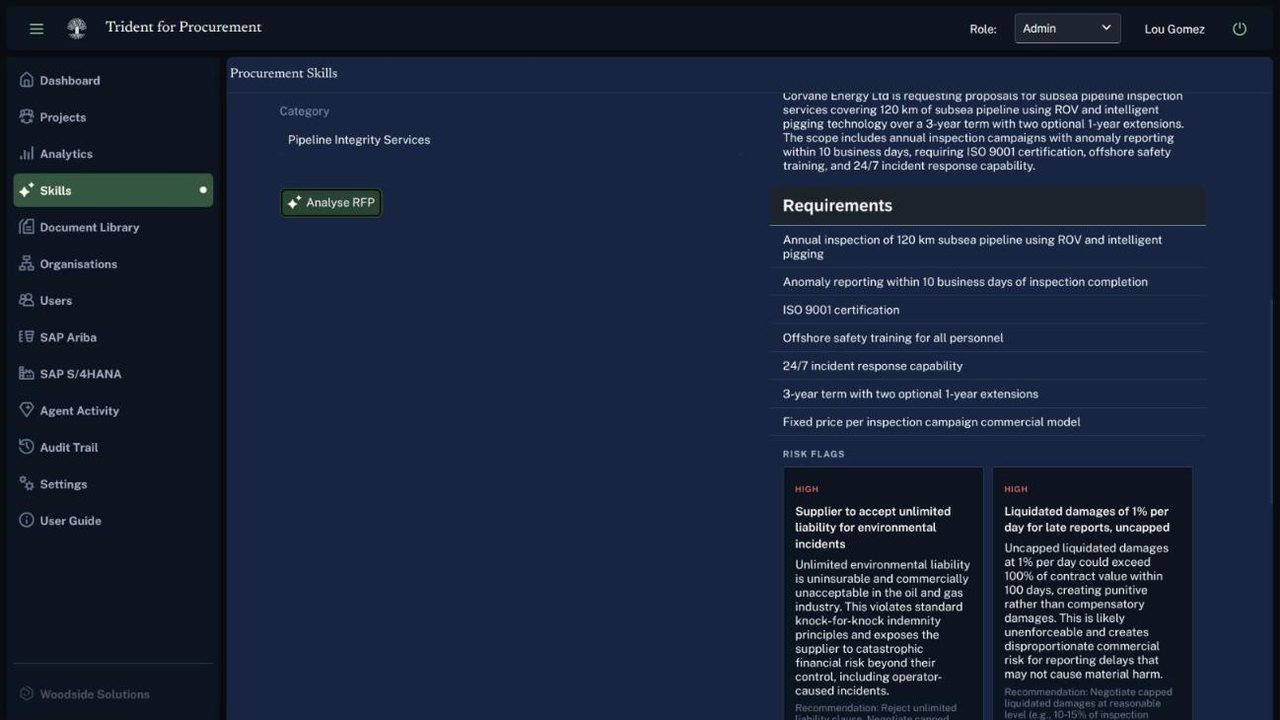
Skills run on their own, outside the project steps above. Every skill searches the document library and lists the sources it used.
Run any skill
- Go to Skills and open the skill's tab. Your role decides which tabs you see.
- Optionally choose a project in Load from Project, and a proposal if asked. Fields are filled in from the project; edit them if needed.
- Fill in the required fields (marked *). Use Upload to extract text from a .docx, .pdf, .xlsx, .pptx or .txt file.
- Choose the Industry to apply its profile, then run the skill.
- Review the result and open library sources used to see which documents it drew on. Download the result where a download button is shown.
| Tab | Role | You provide | You get |
|---|---|---|---|
| 01Analyse RFP | Buyer | RFP text, industry, buyer name, category | Requirements and risk flags. Download .docx |
| 02Draft RFP | Buyer | Procurement requirements, category, budget range, timeline, special requirements | A full RFP with evaluation scorecard and appendices. Download .docx, Copy as Markdown |
| 03Evaluate Proposal | Buyer | Proposal text, criteria (or the project's template), RFP context, supplier name | Score per criterion with evidence and gaps, risks, clarification questions, next steps. Download .docx |
| 04Compare Vendors | Buyer | RFP context, criteria, two or more vendors and their proposals | Ranked vendors with scores |
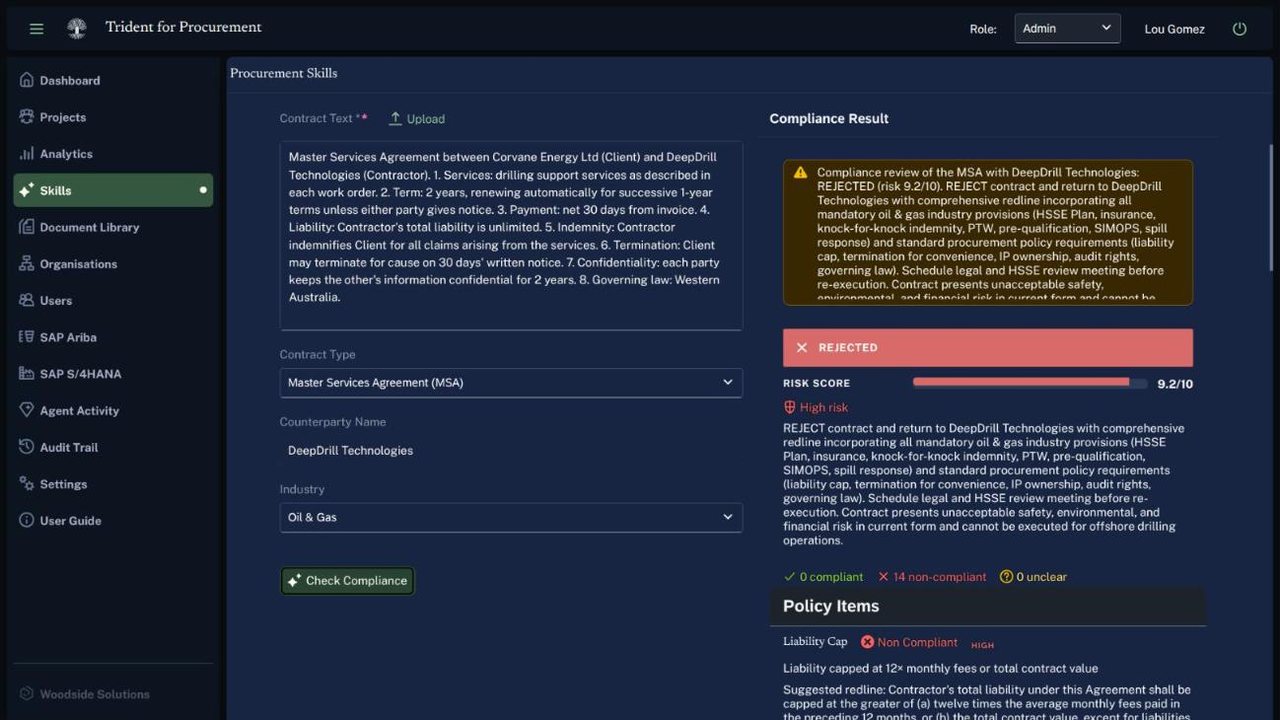
| 05Check Compliance | Buyer, supplier | Contract text, contract type, counterparty, industry | Risk score, policy items with status and suggested redlines. Download .docx |
| 06Draft SOW | Buyer | Project description, vendor, RFP requirements, evaluation summary | A statement of work (SOW) with sections, key commitments and open items |
| 07Review SOW | Buyer | SOW or contract text, RFP requirements, gaps to check | Readiness score, findings, open-items log, requirement traceability. Download Report (.docx), Download Open Items (.xlsx) |
| 08Draft Response | Supplier | RFP section, supplier profile, tone (consultative, formal or technical) | An editable response section with suggested evidence |
| 09Negotiation | Buyer | SOW or contract text, open items | Strategy, must-hold positions, negotiation points, recommended concessions |
| 10Award Letter | Buyer | Vendor, project description, evaluation score, key commitments | Letter text, key dates, next steps |
Some skills lead to the next one. In Review SOW, select Get Negotiation Guidance to open Negotiation with the vendor, buyer and open items filled in. From Negotiation, Draft Award Letter opens Award Letter the same way.
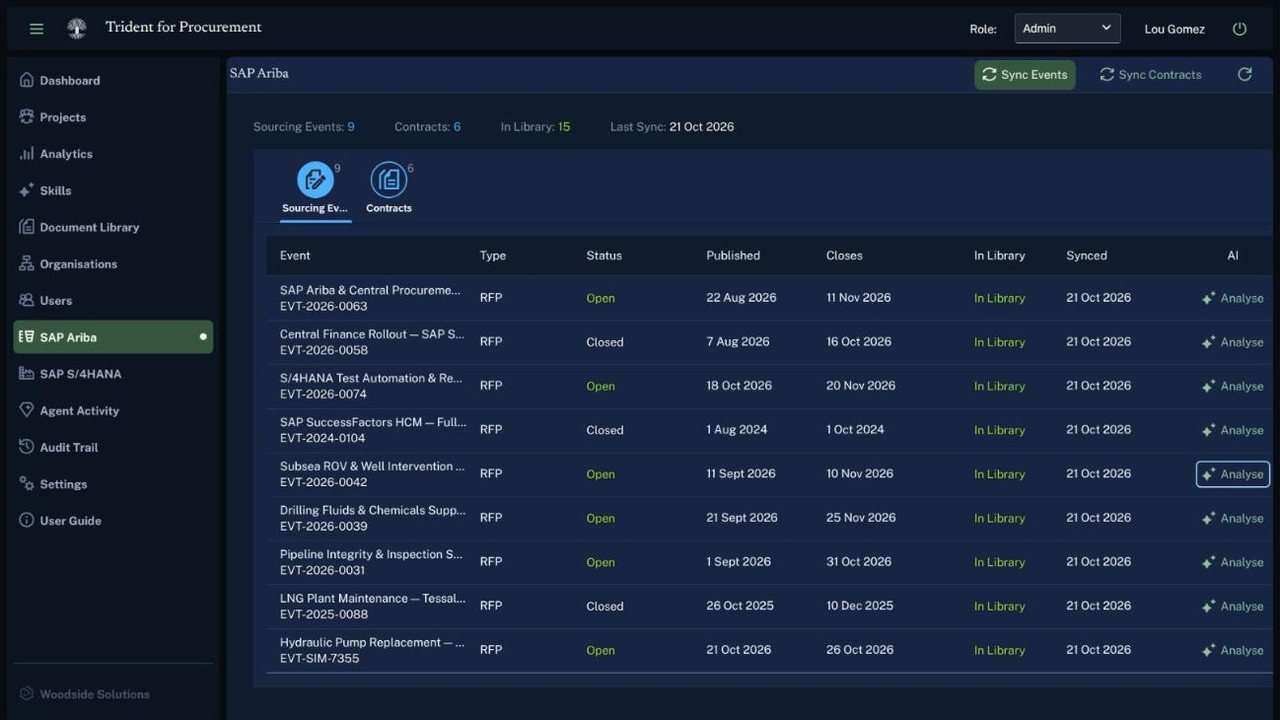
You can also run RFP analysis on a synced sourcing event from SAP Ariba (Analyse), and a compliance check on a synced contract (Check). Skills can be run from Joule for customers who use it, but it isn't required or the default.
05Buyers and administrators
Review agent findings
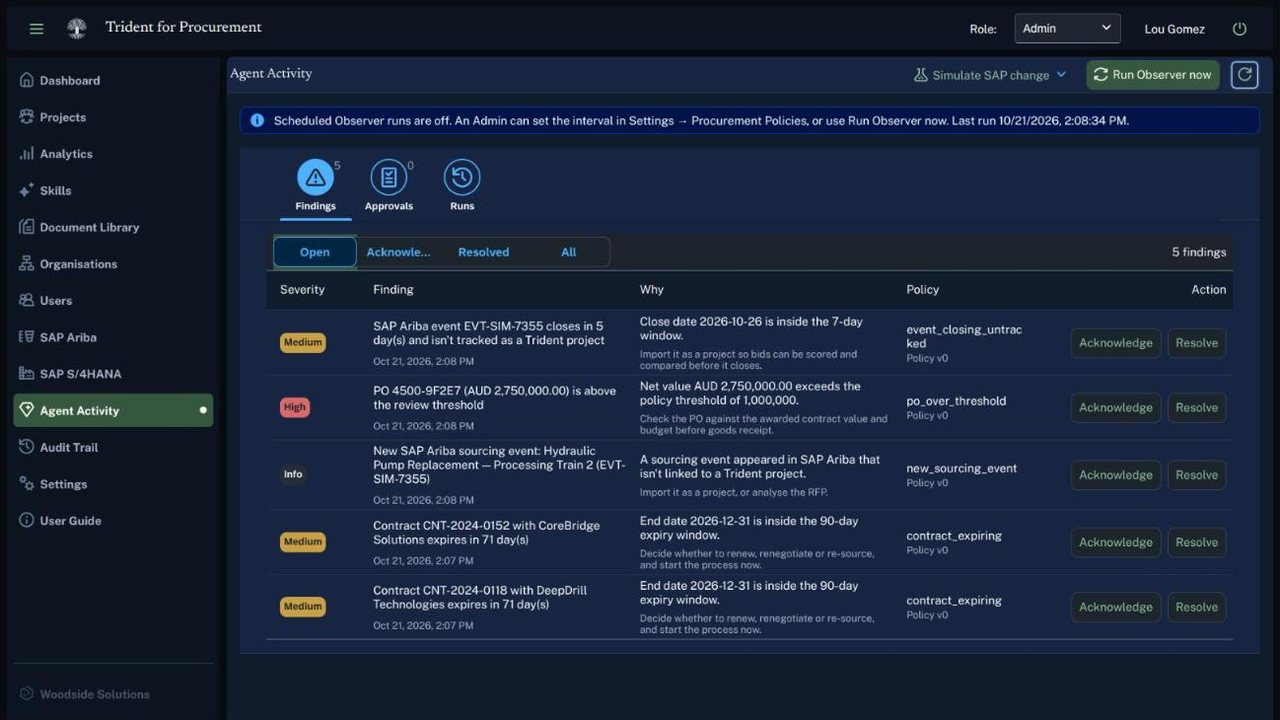
The observer syncs SAP Ariba and SAP S/4HANA, and the reasoner checks the changes against your procurement policies. Each finding has a severity, the reason, and the policy rule and version that raised it.
Work through findings
- Open Agent Activity, or select Open Agent Activity in the attention strip on the Dashboard.
- On the Findings tab, filter by Open, Acknowledged, Resolved or All.
- Read Why for the reason and recommended next step.
- Select Acknowledge when you have seen it, or Resolve when it is dealt with. If a finding has a proposed write-back, select Review write-back.
What raises a finding
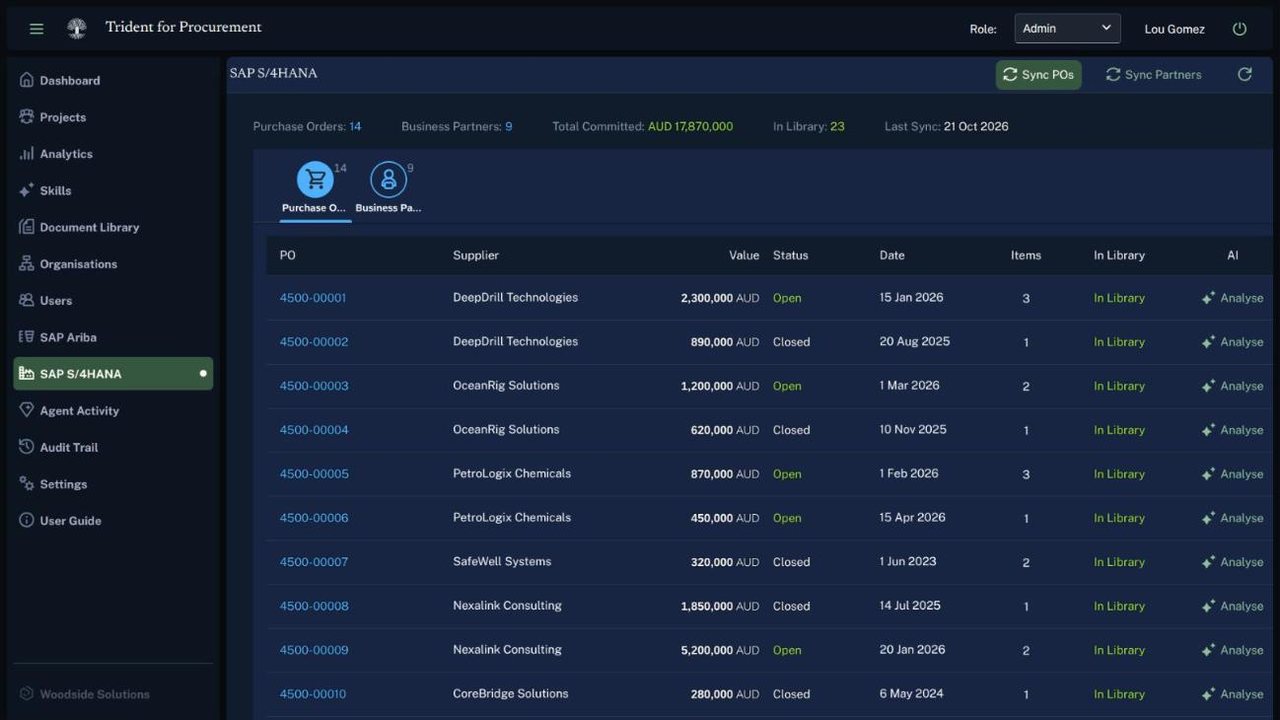
- An SAP S/4HANA purchase order above the review threshold
- A new SAP S/4HANA business partner
- A new or changed SAP Ariba contract, or one inside the expiry window
- A new SAP Ariba sourcing event not linked to a project, or one closing soon
- A linked SAP Ariba event that is out of step with its project. This also proposes a write-back
The Runs tab lists each observer run, what started it and how many observations it found.
06Buyers and administrators
Approve actions
Write-backs to SAP are proposed first and carried out only after approval: push an award or close an event in SAP Ariba, or create a purchase order in SAP S/4HANA.
Approve or reject a write-back
- Open Agent Activity › Approvals, or select Review in the "waiting for approval" strip on the project.
- Check the values in the review: for example the SAP Ariba event, awarded supplier and award date, or the supplier, business partner, amount and description of a purchase order.
- Optionally add a note for the audit trail.
- Select Approve and write to SAP Ariba (or SAP S/4HANA), Reject, or Not now to decide later.
When an approval is stopped
- Four-eyes approval: if your administrator has turned it on, someone other than the person who proposed the write-back must approve it.
- Changed values: if the data changed after the write-back was proposed, the approval stops. Review the project and propose the write-back again.
Proposals, approvals, rejections and write-backs are all recorded in the signed audit trail.
Nothing is written to SAP Ariba or SAP S/4HANA until a buyer approves it.
07Suppliers
Respond to a project
Submit a proposal
- Go to Projects. Projects you are invited to appear here. Until a buyer invites you, the list is empty.
- Open the project and read RFP Details.
- In My Proposal, select Submit Proposal, enter your Proposal Text and select Submit Proposal.
If you win, the project shows that you have been awarded, and the RFP and your proposal are added to your document library.
Draft a response and check a contract
- In Skills › Draft Response, paste the RFP section and your supplier profile, choose a tone, and run it. Edit the draft before you use it.
- In Skills › Check Compliance, paste a contract to see policy items, a risk score and suggested redlines.
- Add your own past proposals and capability documents to the document library to ground the drafts.
Ask the buyer a question
- Open the project and go to Q&A Thread.
- Type your question, choose the message type and send it. You see public messages and messages addressed to you.
08Everyone
Use the document library
The document library holds your organization's documents. Skills and Ask AI search it by keyword and show the sources they used. You see only your own organization's documents.
Add a document
- Go to Document Library and select Add Document.
- Choose a .docx, .pdf, .xlsx or .txt file up to 10 MB and select Read Document. Check the Extracted Text Preview.
- Enter a Title and choose a Document Type: RFP, Proposal, Contract, Policy or Other.
- Select Add to Library.
Find and remove documents
- Type in Search library… to see matching passages with a relevance score.
- Filter the list by type.
- To remove a document, select its delete icon and confirm.
Documents also arrive from SAP Ariba and SAP S/4HANA syncs, and from awards. Past RFPs, winning proposals, policies and approved clauses give the skills the most useful context.
09Administrators
Administer Trident
Most of these tasks are in Settings, one page with a section for each area.
Give people access
- In SAP BTP, assign each user the role collection for buyer, supplier or administrator.
- In Organisations, select Register Organisation and enter the Organisation Name, Type (Buyer, Supplier, or both), Industry and contact email.
- In Users, choose the organization and select Invite User. Enter the email, the Organisation Role and the Functions (Buyer, Seller), then Send Invite.
- The invitation is accepted when that person first signs in. You can revoke a pending invitation.
Connect SAP Ariba and SAP S/4HANA
- In Settings › Data Source Integrations, open Configure Credentials on the SAP Ariba card.
- Enter the API details from your SAP Ariba API application and select Save, then Test connection.
- On the SAP S/4HANA card, enter the system URL and communication user, and the company code and purchasing organization for new purchase orders. Select Save.
- Select Sync Events and Sync Contracts on SAP Ariba, and Sync POs and Sync Partners on SAP S/4HANA.
Saved secrets are shown as ***. Leave them as *** to keep the saved value.
Register an MCP server
- In Settings › MCP Servers, expand Register an MCP server.
- Enter a lowercase Name, a Title and the HTTPS URL. Add a bearer token if the server needs one.
- Turn on Observer watches this server to sync and index its data, then select Test and register.
The built-in servers for SAP Ariba and SAP S/4HANA are listed with their status. Use Test to check one.
Choose the AI model
- In Settings › AI Model, choose a model from those available in the generative AI hub in SAP AI Core. Models that are not deployed are greyed out.
- Select Save. All users and all skills use the new model.
Configure procurement policies
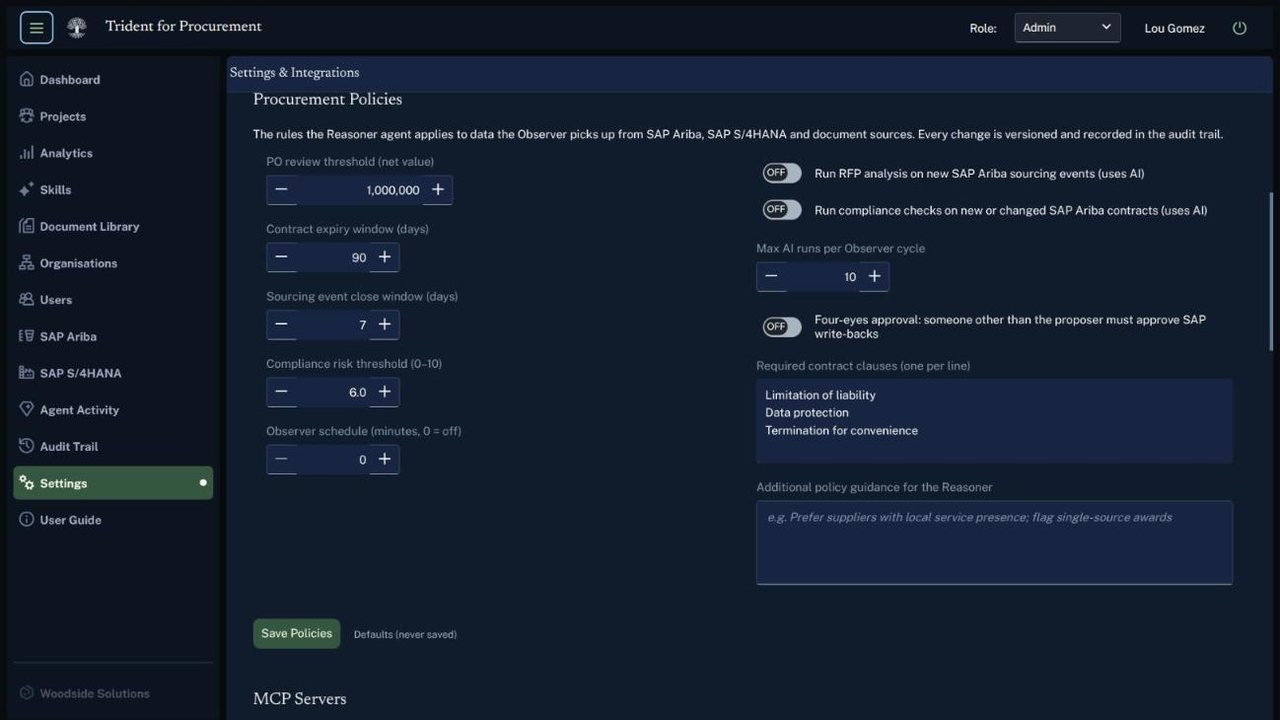
In Settings › Procurement Policies. The reasoner applies these rules. Each save creates a new policy version and an audit record.
| Setting | What it does |
|---|---|
| PO review threshold (net value) | Flags SAP S/4HANA purchase orders above this value |
| Contract expiry window (days) | Flags SAP Ariba contracts that expire within this many days |
| Sourcing event close window (days) | Flags SAP Ariba events that close within this many days |
| Compliance risk threshold (0–10) | A compliance check at or above this risk score becomes a high-severity finding |
| Observer schedule (minutes, 0 = off) | How often the observer runs on its own. At 0, start it with Run Observer now in Agent Activity |
| Run RFP analysis / compliance checks | Runs RFP analysis on new SAP Ariba sourcing events, and compliance checks on new or changed contracts. Off by default |
| Max AI runs per Observer cycle | Caps the automatic skill runs in one observer run |
| Four-eyes approval | Someone other than the proposer must approve SAP write-backs |
| Required contract clauses | Clauses every contract must have, one per line |
| Additional policy guidance | Free-text guidance for the reasoner, for example supplier preferences |
Review industry profiles
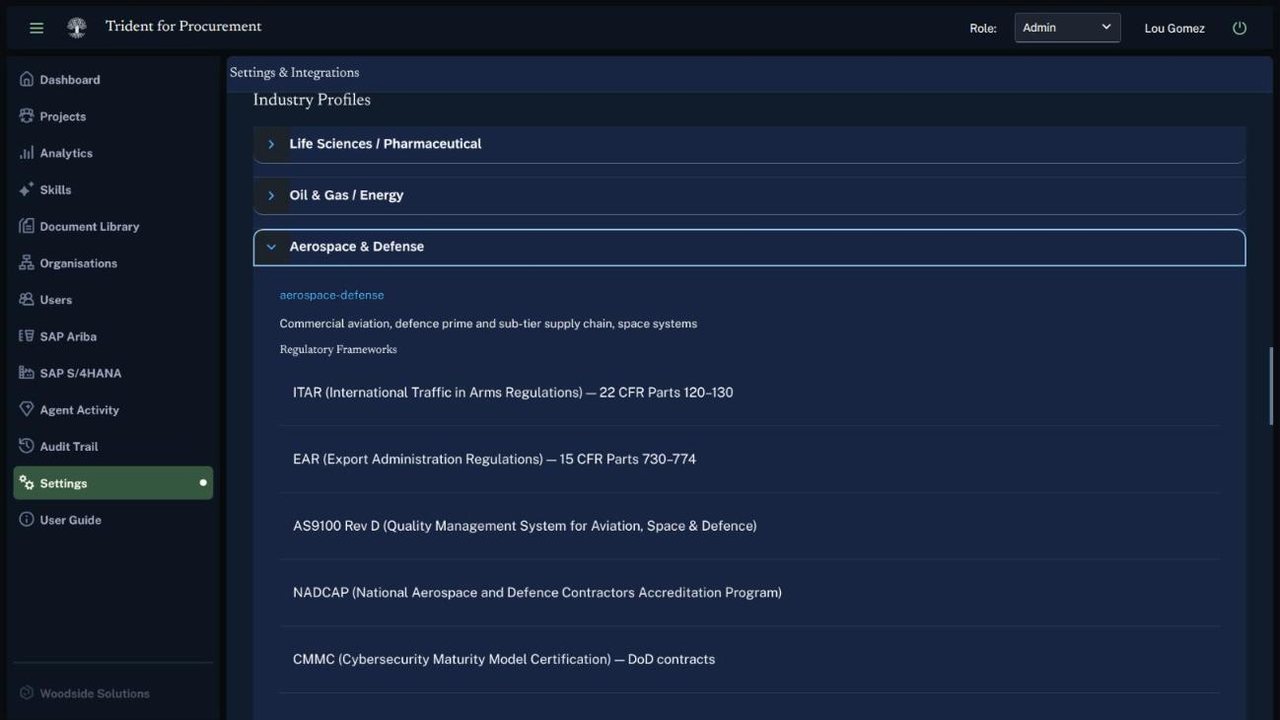
In Settings › Industry Profiles, expand an industry to see its regulatory frameworks, key risks, mandatory clauses, evaluation criteria and category examples. There are profiles for aerospace and defense, life sciences, and oil and gas. A profile applies when its industry is chosen on a project or skill.
Run the observer and review the audit trail
- In Agent Activity, select Run Observer now to sync and check for changes straight away.
- In Audit Trail, filter by action or outcome (Allow, Deny, Error). Each record shows the time, user, action, resource, outcome, details and its signature.
10Everyone
Get help
- "You don't have permission"
- Your role or organization membership doesn't allow the action. Ask your administrator to check your role collection and invitation.
- No library sources used
- The library has no documents that match. Add related RFPs, contracts and policies, then run the skill again.
- Upload returns no text
- Check that the file is under 10 MB and a supported type. Scanned PDFs without selectable text can't be read.
- A project is missing
- Check your role in the Role: list and the Status filter on Projects. Suppliers see a project only after they are invited.
- Session expired
- Trident shows a "Session expired" message. Sign in again.
- Support
- Email support@woodsidesolutions.com.